Creating an order from the back office
Use Add when an order is received by phone, email or WhatsApp.
How to
- Click the customer icon and pick the customer; outstanding, overdue, deposit and wallet balances load automatically.
- Under Order Items click Add and choose products, cases and units.
- Fill PO number, delivery date, delivery address and notes on the right.
- Click Calculate Price to apply prices, schemes, discounts and tax.
- Check the Order Summary and click Save and Close.
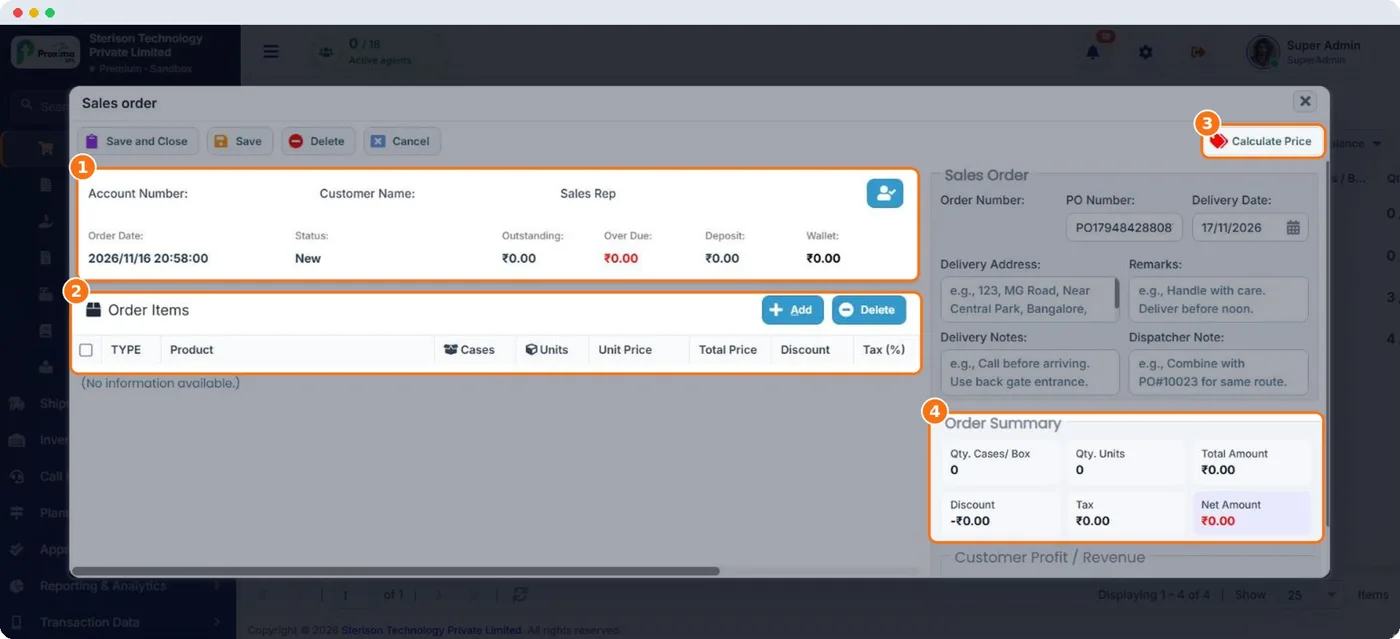
- 1Customer, outstanding, wallet · Customer header with credit position — check it before accepting a large order.
- 2Order items · Products, quantities, prices, discounts and tax per line.
- 3Calculate Price · Applies the price list and every active scheme automatically.
- 4Order summary · Quantity, gross, discount, tax and net amount.
Tip
If System Configuration › Block Out-of-Stock Order Items is on, items without available stock cannot be ordered.
Still stuck?
Message our support team on WhatsApp in English, Tamil, Malayalam or Hindi.