HR setup: hours, weekly off and holidays
Attendance and payroll need three things set first: your business hours, the weekly off days and the holiday calendar.
| Setting | Where | What it does |
|---|---|---|
| Business Hours | Configuration › System Configuration | The start and end of the working day. A day counts as present, ¾, ½ or ¼ day from the hours worked within it. |
| Attendance with Photo Verification | Configuration › System Configuration | Reps take a live selfie at the start and end of the day. |
| Weekly off days and default rate per KM | HR & Payroll › Payroll › HR Settings | Company defaults, used for everyone without their own values. |
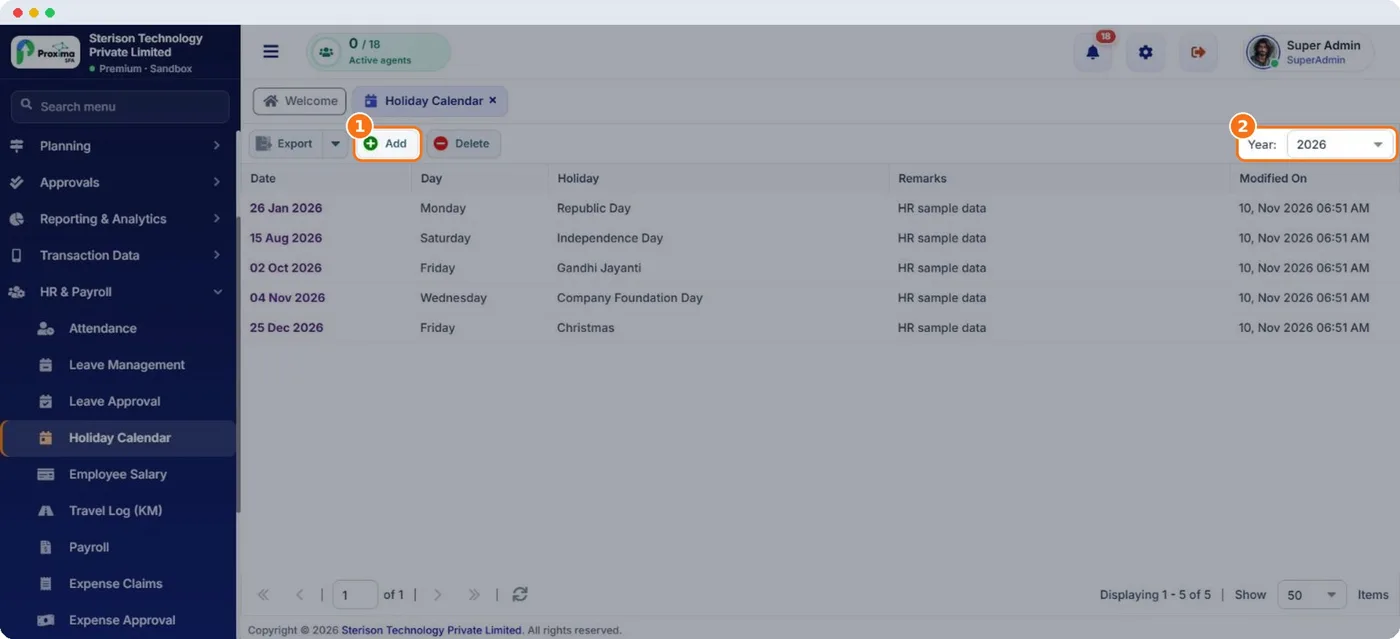
| Holidays | HR & Payroll › Holiday Calendar | Public and company holidays, by year, with name and remarks. |
| Employee's own weekly off and KM rate | HR & Payroll › Employee Salary | Overrides the company default for that person. |
How to
- Set the business hours and photo verification in System Configuration.
- Open Payroll › HR Settings, tick the weekly off days and enter the default rate per KM and which KM source to use.
- Add the year's holidays in Holiday Calendar.
- Set each employee's salary in Employee Salary.
Tip
Add next year's holidays in December so January payroll is right first time.
Related guides: Holiday calendar · Employee salary and travel allowance.
Still stuck?
Message our support team on WhatsApp in English, Tamil, Malayalam or Hindi.