Rolling out the field app to your team
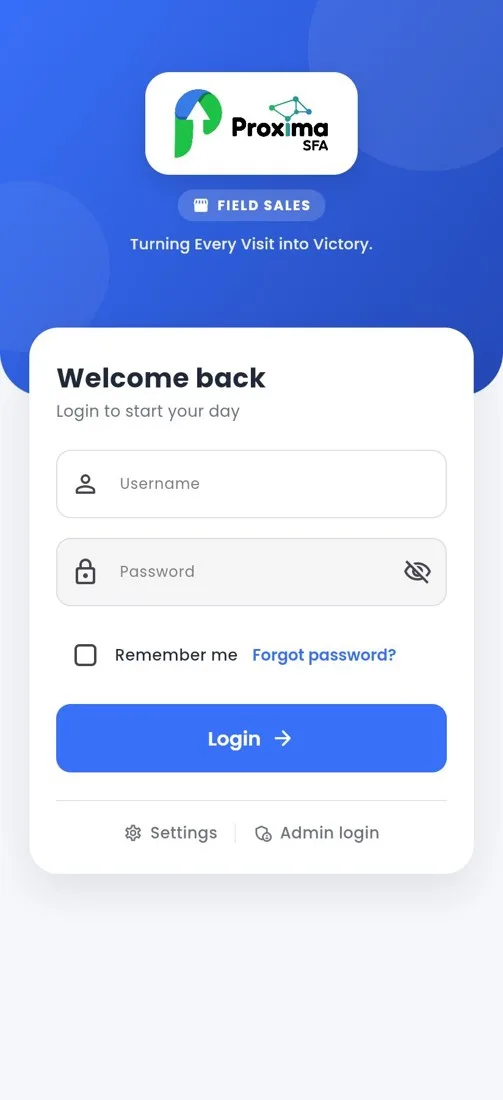
A smooth first week comes from preparing users, phones and data before reps open the app.
How to
- Create each rep in User & Access › Users with a Proxima SFA licence and the right role, such as sales rep, driver or merchandiser.
- Check Role Permissions so each role sees only what it needs.
- Assign reps and vehicles to depots, and schedule their beats for the first week.
- Load the trucks in Nexus for van sales reps.
- Install the app on each phone and set the phone up: location allowed all the time with high accuracy, battery unrestricted, camera, Bluetooth and notifications allowed.
- Sign in with the rep's login. The first sign in downloads customers, products, prices, schemes and routes.
- Run one practice visit together: start the day, open the route, take an order, collect a payment, end the route and end the day.
Tip
Roll out depot by depot. A small first group finds the questions that the rest of the team would otherwise all ask on day one.
Tip
Keep a short WhatsApp group for the first two weeks so reps can send a screenshot when they are stuck.
Related guides: Phone settings the app needs · Users · Role permissions · Assigning a sales rep.
Still stuck?
Message our support team on WhatsApp in English, Tamil, Malayalam or Hindi.