Truck loading and unloading
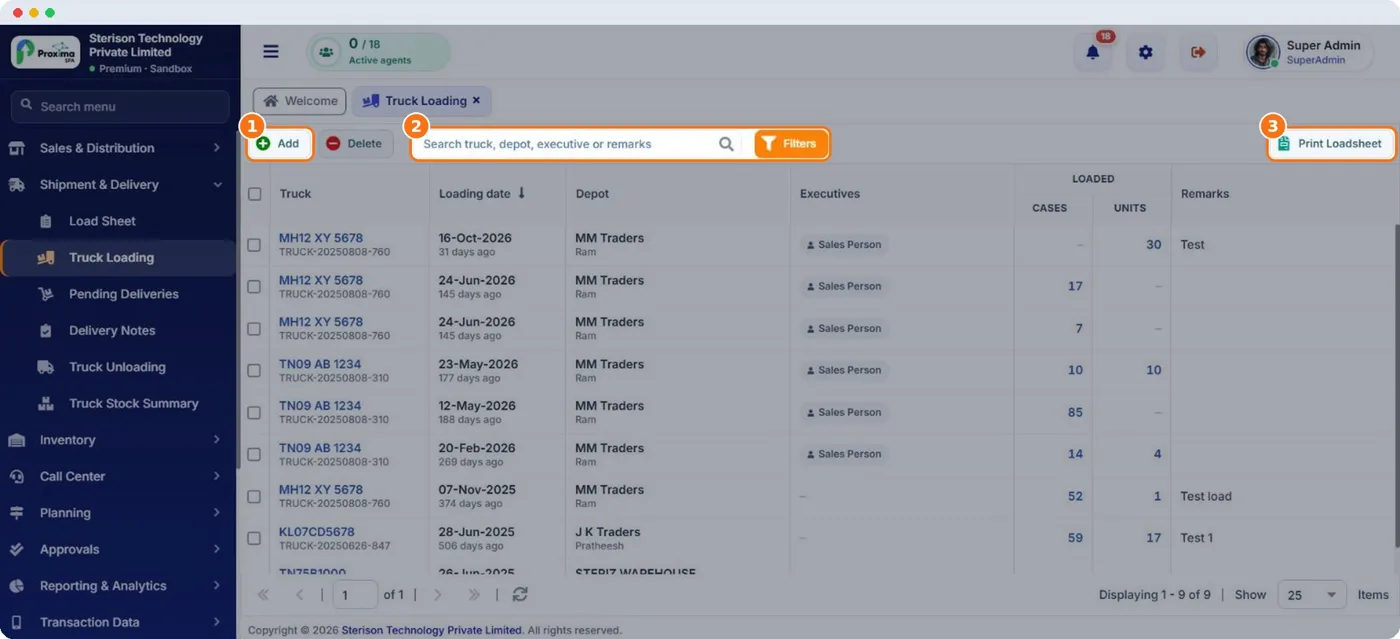
Van sales and deliveries start and end at the depot. Stock moves from the depot onto the truck in the morning and the unsold part comes back in the evening. Proxima records both so the van and the depot always agree.
How to
- Print the Load Sheet (Shipment & Delivery › Load Sheet) for the rep and dates. It totals the pre sale orders to pick.
- In Truck Loading click Add, choose the truck, depot, date and executives, and add the products in cases and units, or load straight from the load sheet. Save and print the load sheet for the gate.
- The rep confirms the loading in the field app and sells or delivers during the day. Van stock on the phone updates at every sync.
- In the evening record Truck Unloading for the stock that comes back, and print the unloading report.
- Check Truck Stock Summary to confirm every product balances.
Related guides: Loaded stock, returns and trade returns · Truck Loading reference · Truck loading in the field app.
Still stuck?
Message our support team on WhatsApp in English, Tamil, Malayalam or Hindi.